
Deploy Like a Pro: Zero Downtime Using Docker, GitHub Actions, and EC2
Deploying applications with minimal downtime is crucial for ensuring a seamless user experience. This article explores how to achieve an almost zero downtime deployment using GitHub Actions and Docker. By automating the build, push, and deployment processes, we can ensure efficient and reliable software updates.

Approach
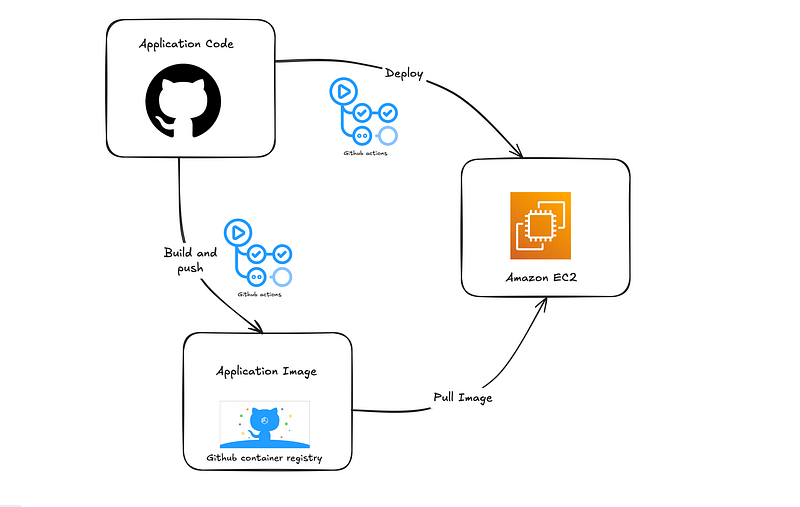 Our approach consists of the following steps:
- **Define a
Dockerfileand **docker-compose.yamlto containerize the application. - Automate Docker image build and push using GitHub Actions.
- Deploy the image to an EC2 instance by pulling the latest image, stopping running containers, and restarting them.
- Clean up unused Docker images to save storage and maintain system efficiency.
Step 1: Creating Docker and Compose Files
Dockerfile
This file defines how the application is built inside a Docker container.
# Use an official Node.js runtime as a base image
FROM node:18
# Create a non-root user
RUN useradd --create-home --shell /bin/bash appuser
# Set the working directory inside the container
WORKDIR /app
# Copy package.json and package-lock.json first (for caching optimization)
COPY package.json package-lock.json ./
# Install dependencies using npm ci
RUN npm ci
# Copy the rest of the application code
COPY . .
# Change ownership of the working directory to the non-root user
RUN chown -R appuser:appuser /app
# Switch to the non-root user
USER appuser
# Expose the necessary port
EXPOSE 3000
# Define the command to run the app
CMD ["npm", "start"]```
`docker-compose.yaml`
This file defines how our services run together in containers.
```yaml
version: '3'
services:
app:
image: ghcr.io/<your-github-username>/<repo-name>:latest
restart: always
ports:
- "80:3000"```
### Step 2: GitHub Actions for Building and Pushing Docker Images
The first GitHub Actions workflow automates the process of building and pushing the Docker image to **GitHub Container Registry (GHCR)**. This ensures that every change pushed to the `main` branch is built and stored as a new Docker image.
#### Workflow Breakdown:
1. **Trigger on push to **`main`** or manual dispatch**The workflow runs when changes are pushed to `main` or triggered manually.
1. **Checkout repository code**This retrieves the latest version of the codebase.
1. **Log in to GitHub Container Registry (GHCR)**Authentication is necessary to push images to GHCR.
1. **Set up Docker Buildx**Enables building multi-platform images and improves build performance.
1. **Build and push Docker image**The application is packaged into a Docker image and tagged with `latest` and `SHA`. Add a `previous-` tag in case of rollback
1. **Verify the pushed image**Ensures that the image has been successfully uploaded to the registry.
```yaml
name: Build and Push Docker Image
on:
push:
branches:
- main
workflow_dispatch:
jobs:
build-and-push:
runs-on: ubuntu-latest
permissions:
packages: write
contents: read
steps:
- name: Checkout code
uses: actions/checkout@v3
- name: Log in to GitHub Container Registry
uses: docker/login-action@v2
with:
registry: ghcr.io
username: ${{ github.actor }}
password: ${{ secrets.GITHUB_TOKEN }}
- name: Set up Docker Buildx
uses: docker/setup-buildx-action@v2
- name: Build and push Docker image
uses: docker/build-push-action@v5
with:
context: .
push: true
tags: |
ghcr.io/${{ github.repository }}:latest
ghcr.io/${{ github.repository }}:${{ github.sha }}
ghcr.io/${{ github.repository }}:previous-${{ github.run_number }}
- name: Verify pushed image
run: |
echo "Image ghcr.io/${{ github.repository }}:latest pushed successfully."```
### Step 3: Creating Secrets in GitHub Actions
Before deploying to EC2, we must store sensitive credentials securely in GitHub Secrets. These include:
- **SSH_KEY**: The private key to access the EC2 instance.
- **S_HOST**: The hostname or IP address of the EC2 instance.
- **S_USER**: The SSH user for EC2 access.
- **PAT**: A personal access token (PAT) for authentication with GitHub Container Registry.
- **USERNAME**: The GitHub username for container registry authentication.

#### Steps to Add Secrets in GitHub:
1. Go to **GitHub repository settings**.
1. Navigate to **Secrets and Variables > Actions**.
1. Click **New repository secret**.
1. Add the required secrets with their corresponding values.
1. Save each secret.
### Step 4: Deploying to EC2

Once the image is built and pushed, another GitHub Action workflow deploys the updated image to an EC2 instance. This workflow automates the deployment process, ensuring minimal downtime.
#### Deployment Workflow Breakdown:
1. **Trigger on successful build-and-push workflow completion**This ensures that deployments only occur when a new image is available.
1. **SSH into EC2 instance**Uses a secure private key stored in GitHub Secrets.
1. **Authenticate with GHCR**Logs into the container registry using a personal access token (PAT).
1. **Store the currently running image**Saves the currently running container's image reference
1. **Pull the latest Docker image**Ensures that the latest application version is retrieved.
1. **Transfer the updated **`docker-compose.yaml`** file**This ensures that any configuration changes are applied.
1. **Stop running containers**Prevents conflicts when starting the new version.
1. **Start the new containers**Ensures the application is up and running.
1. **Remove old Docker images**Prevents disk space issues by cleaning up unused images.
```bash
name: Deploy
run-name: Deploy to ${{ github.ref_name }} by @${{ github.actor }}
on:
workflow_run:
workflows: ["Build and Push Docker Image"]
types:
- completed
branches:
- main
concurrency:
group: ${{ github.workflow }}-${{ github.head_ref || github.run_id }}
cancel-in-progress: true
jobs:
deploy:
runs-on: ubuntu-latest
steps:
- name: Checkout code
uses: actions/checkout@v3
- name: Deploy to EC2
env:
SSH_KEY: ${{ secrets.SSH_KEY }}
S_HOST: ${{ secrets.S_HOST }}
S_USER: ${{ secrets.S_USER }}
PAT: ${{ secrets.PAT }}
USERNAME: ${{ secrets.USERNAME }}
APP_IMAGE: ghcr.io/<your-github-username>/<repo-name>:latest
run: |
echo "$SSH_KEY" > pr.key && chmod 600 pr.key
ssh -o StrictHostKeyChecking=no -i pr.key ${S_USER}@${S_HOST} "echo ${PAT} | docker login ghcr.io -u ${USERNAME} --password-stdin"
ssh -o StrictHostKeyChecking=no -i pr.key ${S_USER}@${S_HOST} "docker ps --format '{{.Image}}' > previous_image.txt"
ssh -o StrictHostKeyChecking=no -i pr.key ${S_USER}@${S_HOST} "docker pull ${APP_IMAGE}" &
wait
scp -o StrictHostKeyChecking=no -i pr.key docker-compose.yaml ${S_USER}@${S_HOST}:~/app/
ssh -o StrictHostKeyChecking=no -i pr.key ${S_USER}@${S_HOST} "docker-compose -f ~/app/docker-compose.yaml stop"
ssh -o StrictHostKeyChecking=no -i pr.key ${S_USER}@${S_HOST} "docker-compose -f ~/app/docker-compose.yaml pull"
ssh -o StrictHostKeyChecking=no -i pr.key ${S_USER}@${S_HOST} "docker-compose -f ~/app/docker-compose.yaml up -d"
ssh -o StrictHostKeyChecking=no -i pr.key ${S_USER}@${S_HOST} "docker images -f 'dangling=true' -q | xargs -r docker rmi || echo cleanup-partly-failed"```
### Step 5: Rollback
Even with a well-automated deployment pipeline, unexpected issues can arise. A rollback strategy allows you to revert to a previous stable version of your application in case a new deployment introduces bugs, performance issues, or unexpected failures. Rollbacks help minimize downtime and quickly restore service stability.
```bash
name: Rollback Deployment
on:
workflow_dispatch:
inputs:
version:
description: "Enter previous Docker image version (e.g., ghcr.io/<your-github-username>/<repo-name>:previous-1234)"
required: true
jobs:
rollback:
runs-on: ubuntu-latest
steps:
- name: Checkout repository
uses: actions/checkout@v3
- name: Rollback to Previous Image
env:
SSH_KEY: ${{ secrets.SSH_KEY }}
S_HOST: ${{ secrets.S_HOST }}
S_USER: ${{ secrets.S_USER }}
run: |
echo "$SSH_KEY" > pr.key && chmod 600 pr.key
echo "Stopping current running containers..."
ssh -o StrictHostKeyChecking=no -i pr.key ${S_USER}@${S_HOST} \
"docker-compose -f ~/app/docker-compose.yaml down"
echo "Pulling specified rollback image: ${{ github.event.inputs.version }}"
ssh -o StrictHostKeyChecking=no -i pr.key ${S_USER}@${S_HOST} \
"docker pull ${{ github.event.inputs.version }}"
echo "Updating docker-compose with rollback image..."
ssh -o StrictHostKeyChecking=no -i pr.key ${S_USER}@${S_HOST} \
"sed -i 's|image: ghcr.io/[^ ]*|image: ${{ github.event.inputs.version }}|' ~/app/docker-compose.yaml"
echo "Starting rollback deployment..."
ssh -o StrictHostKeyChecking=no -i pr.key ${S_USER}@${S_HOST} \
"docker-compose -f ~/app/docker-compose.yaml up -d"
echo "Rollback completed successfully!"```
- **Manually Trigger the Workflow****- **Go to your GitHub repository.- Navigate to **Actions** → **Rollback Deployment**.- Click **Run workflow**, and enter the **previous image tag** you want to restore.
- **What Happens in the Workflow**- Stops the current running container (`docker-compose down`).- Pulls the **previously specified Docker image**.- Modifies the `docker-compose.yaml` file to use this **rollback image**.- Brings the application back up with the **rolled-back version**.
### Conclusion
By leveraging GitHub Actions and EC2, we can achieve a **fully automated, minimal downtime deployment process**. This approach ensures:
- Seamless integration with GitHub repositories.
- Reliable and consistent deployments.
- Automated cleanups to prevent storage clutter.
With this setup, you can focus more on developing features while having confidence that your application is always up and running with the latest updates!
About the author

We have other interesting reads
Crossplane & Composition: Taming Secrets at Scale
In one of our client engagements, the development team found themselves in a bind. Running Kubernetes on AWS, they had to juggle **dozens of apps** — -each needing its own set of secrets, each demanding fresh databases on demand, and all under the watchful eyes of policy restrictions
Achieving Resilience: High Availability Strategies in Kubernetes
In cloud computing, it’s important to keep services running smoothly, even when maintenance tasks like updating or restarting nodes are necessary.
The Art of Debugging: Beyond Breakpoints and Print Statements
Debugging. For many software developers, the word itself conjures images of late nights, endless scrolling through logs, and the gnawing frustration of an elusive bug. We often view it as a necessary evil, a mundane chore that pulls us away from the “real” work of writing new features.