
Setting up Gitlab Runner on Amazon EKS: A Step-by-Step Guide

In the ever-evolving landscape of software development, Continuous Integration and Continuous Delivery (CI/CD) have become indispensable practices. GitLab, a popular DevOps platform, provides GitLab Runner, a versatile tool for executing jobs and deployments. In this article, we’ll explore the process of setting up GitLab Runner on an Amazon EKS (Elastic Kubernetes Service) cluster, combining the power of GitLab and Kubernetes for seamless CI/CD workflows.
Prerequisites:
- AWS account with appropriate permissions.
- Running Amazon EKS cluster
- Gitlab account with admin access to a project
- helm
Step 1: Create a new Runner in the Gitlab
Navigate to your GitLab project and access the “Setting” section. Within this section, click on “CI/CD” and then expand “Runners” section. Once there, you’ll find an option for creating a new group runner.
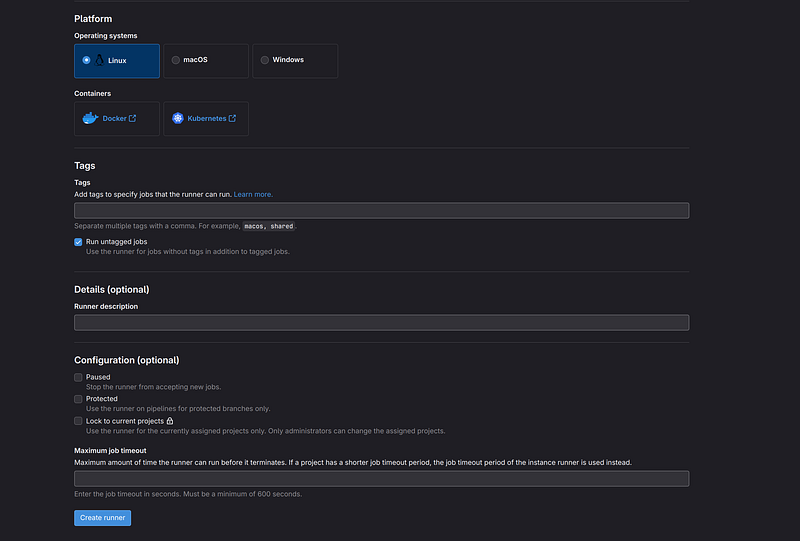
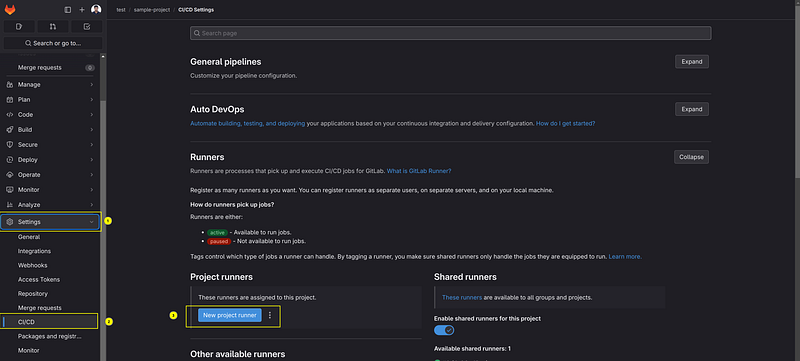 Upon selecting “New Group Runner,” you’ll be prompted to choose the operating system for the runner. You can also add relevant tags for better organization. If you intend to allow the runner to handle jobs without specific tags, check the “Run untagged jobs” option. Following this, create the runner. After configuring these settings, proceed to create the runner by clicking on the respective button.
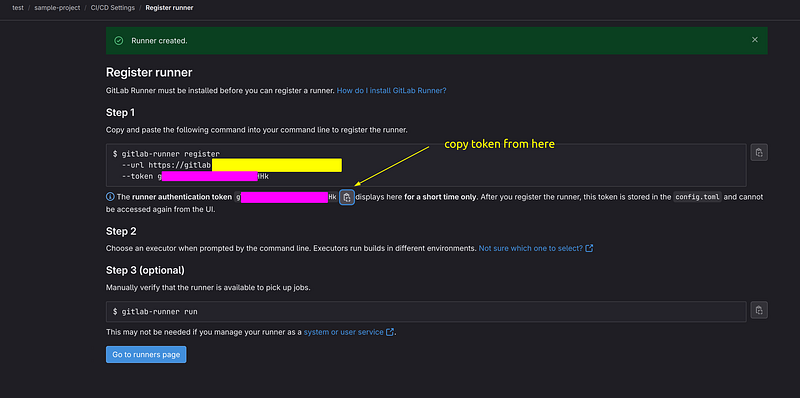
 Upon creation, make sure to copy the runner’s authentication token. This token will be essential when running the runner in your Kubernetes cluster. This streamlined process ensures smooth integration and execution of jobs within your GitLab project.
 Step 2: Install gitlab-runner helm chart in the eks cluster
Create new namespace in the clusterkubectl create namespace runner
Go to gitlab-runner namespacekubectl config set-context --current --namespace=runner
Add gitlab runner repository using command,
helm repo add gitlab http://charts.gitlab.io/```

Create a values.yaml file for gitlab runner helm chart


```yaml
gitlabUrl: <your gitlab url>
rbac:
  clusterWideAccess: false
  create: true
  serviceAccountName: gitlab-runner
runnerToken: <your gitlab runner token>
runners:
  privileged: false
  serviceAccountName: gitlab-runner
  name: "gitlab-runner"
  executor: kubernetes
  config: |
    [[runners]]
      name = "runner-{{ .Release.Name }}"
      environment = ["HOME=/tmp", "builds_dir=/tmp"]
      url = "{{ .Values.gitlabUrl }}"
      executor = "kubernetes"
      builds_dir = "/tmp"
      [runners.kubernetes]
        privileged = false
        cpu_request = "500m"
        memory_request = "500Mi"
        service_cpu_limit = "1000m"
        service_memory_limit = "2000Mi"
        service_cpu_request = "150m"
        service_memory_request = "350Mi"
        helper_cpu_limit = "1500m"
        helper_memory_limit = "1500Mi"
        helper_cpu_request = "150m"
        helper_memory_request = "375Mi"
        poll_timeout = 600
        service_account = "gitlab-runner"
        [runners.kubernetes.node_tolerations]
          "cicd=true" = "NoSchedule"
modify the values.yaml file with your gitlab url and runner token.
Then install gitlab runner using commad,
helm install -f values.yaml gitlab-runner gitlab/gitlab-runner```
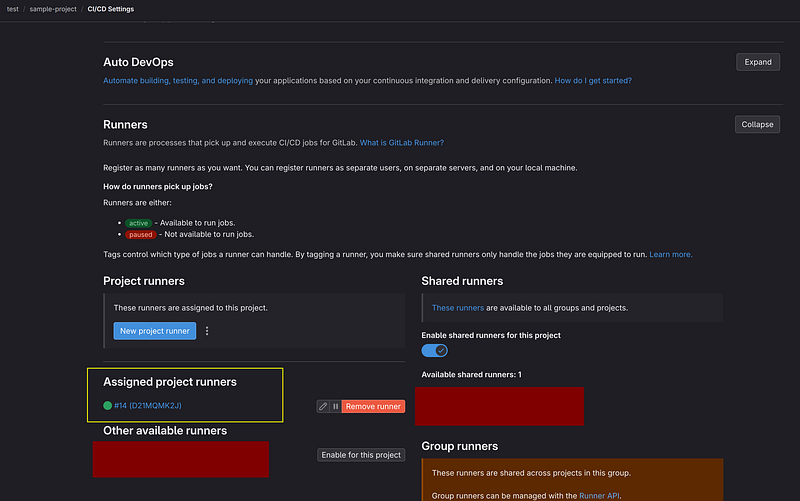
If the new runner appears within the ‘Assigned project runners,’ it indicates that our GitLab runner is operating successfully.
**Step 3: Test new gitlab-runner**
Create a `.gitlab-ci.yml` file in the root.
```yaml
image: alpine:latest
stages:
- build
build:
stage: build
script:
- echo "Building..."```
push the changes to the main branch and your build job start running in the new gitlab runner.
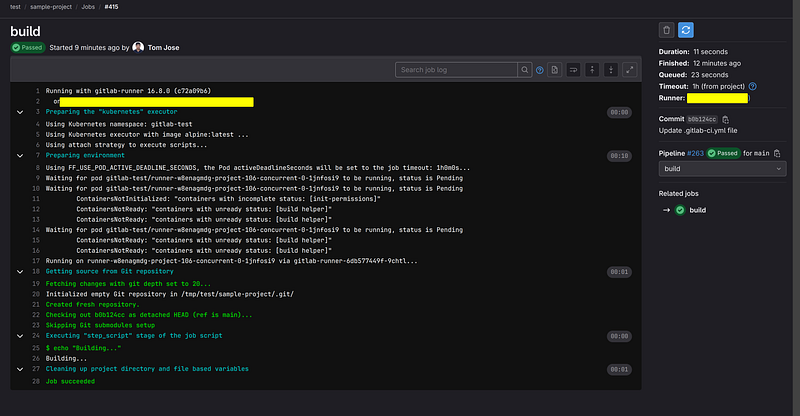
If you specified tags in the runner, you can add that to the `.gitlab-ci.yml`
```yaml
image: alpine:latest
stages:
- build
build:
stage: build
tags:
- <your-tag>
script:
- echo "Building..."```
#### Summary
This guide provides a concise walkthrough for setting up GitLab Runner on Amazon EKS (Elastic Kubernetes Service) to enhance CI/CD workflows.
Starting with creating a new runner in GitLab, we configure it with necessary details like operating system and authentication token.
Then, we install GitLab Runner on the EKS cluster using Helm, ensuring smooth integration by verifying its appearance in project runners.
This setup empowers developers to execute jobs and deployments seamlessly, optimizing their CI/CD pipelines.
About the author

We have other interesting reads
Simplify Kubernetes Storage: Mounting EFS to EKS Like a Pro
Elastic File System (EFS) is a scalable, serverless, and fully managed file system designed to share storage across multiple services or containers in AWS.
The Art of Debugging: Beyond Breakpoints and Print Statements
Debugging. For many software developers, the word itself conjures images of late nights, endless scrolling through logs, and the gnawing frustration of an elusive bug. We often view it as a necessary evil, a mundane chore that pulls us away from the “real” work of writing new features.
Cracking the CKAD in One Go: My Success Story and Tips
The Certified Kubernetes Application Developer (CKAD) certification, provided by the Cloud Native Computing Foundation (CNCF), is a globally recognized credential for professionals working with Kubernetes.