
Simplify Kubernetes Storage: Mounting EFS to EKS Like a Pro
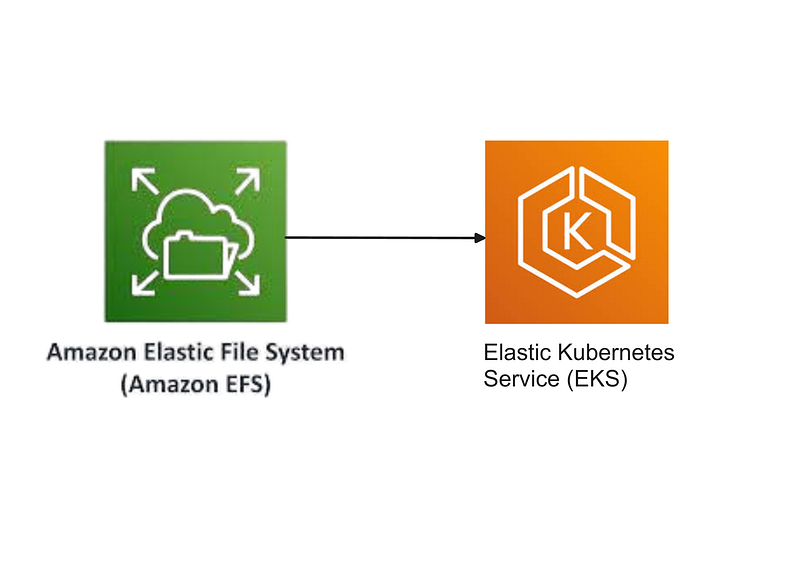 Elastic File System (EFS) is a scalable, serverless, and fully managed file system designed to share storage across multiple services or containers in AWS. When running workloads in an Amazon Elastic Kubernetes Service (EKS) cluster, using EFS can simplify storage management for shared, persistent, and distributed workloads. This article walks you through mounting EFS storage to an EKS cluster.
Why Use EFS with EKS?
EFS provides several advantages in a Kubernetes environment:
- Shared Storage: Multiple pods across nodes can access the same data simultaneously.
- Scalability: EFS automatically scales up or down as your storage needs change.
- Durability and Availability: Data stored in EFS is highly durable and available across multiple Availability Zones (AZs).
Common use cases include machine learning workloads, content management systems, and shared file systems for applications like JupyterHub.
Prerequisites
Before you begin, ensure the following:
- EKS Cluster: A running EKS cluster with
kubectlconfigured for access. - EFS File System: An existing EFS file system in the same region as the EKS cluster.
- IAM Roles: Proper IAM roles and policies for your EKS worker nodes to interact with EFS.
- Amazon EFS CSI Driver: Installed in your EKS cluster.
Steps to Mount EFS to EKS
step-1#### : Create an EFS File System
- Go to EFS Management Console
2. Create a new file system: Select the appropriate VPC and subnets in the same region as your EKS cluster.
3. Note the File System ID; you’ll use it in later steps. - Go to network tab and make sure you are using the same security group as your EKS cluster
step-2#### : Create an IAM Role for the EFS CSI Driver Add-on
To use the Amazon EFS CSI driver Add-on in your EKS cluster, you need to create an IAM role that grants the necessary permissions for the driver to manage EFS volumes. If you’re new to IAM roles or need a refresher, check out this detailed article, AWS IAM Roles for Kubernetes Pods in EKS which explains how to create and configure IAM roles for kubernetes pods in EKS.
Log in to the AWS Management Console: Navigate to the IAM service.
Create a New Role: Click on Roles in the left sidebar, then select Create role. For the trusted entity, choose Custom trust policy and define the policy according to your requirements.
{
    "Version": "2012-10-17",
    "Statement": [
        {
            "Effect": "Allow",
            "Principal": {
                "Federated": "arn:aws:iam::<account id>:oidc-provider/oidc.eks.<region>.amazonaws.com/id/<oidc provider id>"
            },
            "Action": "sts:AssumeRoleWithWebIdentity",
            "Condition": {
                "StringLike": {
                    "oidc.eks.<region>.amazonaws.com/id/<oidc provider id>:sub": "system:serviceaccount:kube-system:efs-csi-*",
                    "oidc.eks.<region>.amazonaws.com/id/<oidc provider id>:aud": "sts.amazonaws.com"
                }
            }
        }
    ]
}```

Attach `AmazonEFSCSIDriverPolicy` and this inline policy to it.


```json
{
    "Version": "2012-10-17",
    "Statement": [
        {
            "Sid": "AllowMount",
            "Effect": "Allow",
            "Action": [
                "elasticfilesystem:ClientMount",
                "elasticfilesystem:ClientWrite"
            ],
            "Resource": "*"
        }
    ]
}```

#### step-3#### : Install the Amazon EFS CSI Driver

You can install the Amazon EFS CSI driver in your EKS cluster either by using the EKS Add-ons feature or by deploying it via the [EFS CSI driver Helm chart](https://github.com/kubernetes-sigs/aws-efs-csi-driver). I prefer using the EKS Add-on for the Amazon EFS CSI driver because it is easier to manage. Attach the role created in step-2 to the add-on.

#### step-4#### : Create an EFS Access Point (Optional)

Access Points simplify access management to specific directories in the EFS file system.

1. Go to the EFS console and select your file system.


1. Create a new **Access Point** with the required configurations:- Directory path.- POSIX permissions.

Note the **Access Point ID**.

#### step-5#### : Configure an IAM Policy

Ensure the worker nodes can access EFS. Attach the following policy to the IAM role associated with your EKS nodes:


```json
{
  "Version": "2012-10-17",
  "Statement": [
    {
      "Effect": "Allow",
      "Action": [
        "elasticfilesystem:DescribeAccessPoints",
        "elasticfilesystem:DescribeFileSystems",
        "elasticfilesystem:CreateAccessPoint",
        "elasticfilesystem:DeleteAccessPoint"
      ],
      "Resource": "*"
    },
    {
      "Effect": "Allow",
      "Action": "elasticfilesystem:ClientMount",
      "Resource": "arn:aws:elasticfilesystem:<region>:<account-id>:file-system/<file-system-id>"
    },
    {
      "Effect": "Allow",
      "Action": "elasticfilesystem:ClientWrite",
      "Resource": "arn:aws:elasticfilesystem:<region>:<account-id>:access-point/<access-point-id>"
    }
  ]
}```

Replace `<region>`, `<account-id>`, `<file-system-id>`, and `<access-point-id>` with your AWS values.

#### step-6: Create a Storage Class for EFS

Create a `StorageClass` to dynamically provision Persistent Volumes.
Apply the following YAML:


```yaml
apiVersion: storage.k8s.io/v1
kind: StorageClass
metadata:
  name: efs-sc
provisioner: efs.csi.aws.com
parameters:
  provisioningMode: efs-ap
  fileSystemId: <file-system-id>
  directoryPerms: "700"
  gidRangeStart: "1000" # optional
  gidRangeEnd: "2000" # optional
  basePath: "/dynamic_provisioning" # optional
  subPathPattern: "${.PVC.namespace}/${.PVC.name}" # optional
  ensureUniqueDirectory: "true" # optional
  reuseAccessPoint: "false" # optional```

Replace `<file-system-id>` with your EFS File System ID.
Save the file as `efs-storage-class.yaml` and apply it:


```cpp
kubectl apply -f efs-storage-class.yaml```

#### step-7: Create a Persistent Volume Claim

Request storage from EFS using a PVC.
Apply the following YAML:


```yaml
apiVersion: v1
kind: PersistentVolumeClaim
metadata:
  name: efs-pvc
spec:
  accessModes:
    - ReadWriteMany
  resources:
    requests:
      storage: 5Gi
  storageClassName: efs-sc```

Save the file as `efs-pvc.yaml` and apply it:


```typescript
kubectl apply -f efs-pvc.yaml```

#### step-8: Use the EFS PVC in a Pod

Define a pod configuration that uses the EFS volume:


```yaml
apiVersion: v1
kind: Pod
metadata:
  name: efs-app
spec:
  containers:
  - name: app
    image: nginx
    volumeMounts:
    - mountPath: "/data"
      name: efs-volume
  volumes:
  - name: efs-volume
    persistentVolumeClaim:
      claimName: efs-pvc```

Save the file as `efs-pod.yaml` and apply it:


```typescript
kubectl apply -f efs-pod.yaml```

Verify that the pod can access the mounted EFS storage:


```bash
kubectl exec -it efs-app -- ls /data```

#### Note:

You can mount EFS directly into pods without using a Persistent Volume (PV) or Persistent Volume Claim (PVC) by referencing the EFS file system directly in the pod’s configuration. This approach simplifies the setup but is less flexible than using dynamic provisioning with a StorageClass.

Here’s how you can mount EFS directly into a pod without using Persistent Volumes:
Create a Pod with Direct EFS Mount


```yaml
apiVersion: v1
kind: Pod
metadata:
  name: efs-direct-mount
spec:
  containers:
  - name: app
    image: nginx
    volumeMounts:
    - name: efs-volume
      mountPath: "/data"
  volumes:
  - name: efs-volume
    csi:
      driver: efs.csi.aws.com
      volumeHandle: <file-system-id>```

Replace `<file-system-id>` with your EFS File System ID.

### Conclusion

Mounting EFS to an EKS cluster provides a reliable, scalable, and shared storage solution for Kubernetes workloads. Following this guide ensures a seamless integration of EFS with your EKS cluster, enabling efficient data management for your applications.
About the author

We have other interesting reads
Cost-Efficient Kubernetes Setup in AWS using EKS with Karpenter and Fargate
Karpenter is an open-source Kubernetes cluster autoscaler designed to optimize the provisioning and scaling of compute resources.
Revolutionizing Kubernetes Configuration Management with KHook and KAgent: A Comprehensive Solution for Automated Nginx Troubleshooting and Remediation
Picture this: It’s 3 AM, and your phone is buzzing with alerts. Your nginx web server is crashing every few minutes, stuck in an endless restart loop. Your website is down, customers are frustrated, and you’re manually troubleshooting configuration issues that should be simple to fix
Setting up Gitlab Runner on Amazon EKS: A Step-by-Step Guide
In the ever-evolving landscape of software development, Continuous Integration and Continuous Delivery (CI/CD) have become indispensable practices.